
GIS Cloud AI – The In-App Chat
GIS Cloud AI brings artificial intelligence right into the platform you already use. Instead of clicking through menus, writing SQL, or asking a more technical colleague for help, you simply describe what you want in plain language, and GIS Cloud does it for you.
Table of Contents
What is GIS Cloud AI?
GIS Cloud AI is the umbrella name for the full set of AI capabilities in the platform. Under that umbrella, there are four features, each built for a different need:
- Ask AI — the in-app conversational assistant. It is the chat panel you open with a button to talk to your maps and data. (See: Ask AI)
- AI Form Fill — fills form fields automatically from a photo or a voice description, with a confidence level for each value. (See: AI Form Fill.)
- AI App Builder — builds custom GIS apps from a written description, opened from the Manager. (See: AI App Builder.)
- MCP Integration — lets external AI clients such as Claude or ChatGPT connect securely to your GIS Cloud data. (See: GIS Cloud MCP.)
Everything GIS Cloud AI can do
Here is the full capability list in plain terms. Most of these are surfaced through Ask AI (the chat) and AI Form Fill.
Analyse and get insights
- Analyse the maps, layers, and data in your own account.
- Count features, filter by attribute, aggregate, and rank.
- Ask questions that span several layers and maps within a single conversation.
Select and classify
- Suggest a selection or a classification on the map — it proposes, you confirm.
- Select features by criteria, such as an attribute value or a threshold.
- Classify features by an attribute with colours: numeric ranges, graduated size or shape, and colour ramps. Note that classifying is destructive — it replaces the current styling, and there is no undo, so you are warned first.
- See your current map selection and act on it, for example, to edit the selected features.
Create, edit, and delete
- Create, edit, and delete maps, layers, and tables.
- Add data to a layer and perform bulk updates across many features at once.
- CSV/XLS import to database via chat
- Bookmarks and file management — create/update/delete bookmarks, file upload, unzip, and directory creation
Note: You can choose whether the people you've shared data with (ie. maps, layers, datasources) can use AI to work with your data. This controls both GIS Cloud's built-in AI and external tools connected over GIS Cloud MCP. By default, this setting is turned OFF to limit AI access for other users, but you can enable it through Account settings.Forms and data collection
- Create a form in Forms Manager with the fields you describe.
- Add a field to an existing form — the form updates in place.
- Create a complete Data Collection project from a single sentence: a map, a table, a layer, and a connected form, all at once. Adding a field updates both the form and the database.
Fill forms from photos or voice
- Fill a form from a photo — the AI suggests field values with a confidence level for each one.
- Fill a form from a spoken description, and name the exact fields the AI should fill.
- Improve the form with each additional photo or voice recording, raising confidence over time.
- Works in the MDC mobile app and in the Map Editor (web), and supports bulk updates.
Build maps from data
- Create a map from data in Forms Manager.
- Create a map from the data you have uploaded to File Manager and imported into Database Manager.
- External database connections — the AI can list connections, query, or attach external PostgreSQL tables
Build apps with AI App Builder
- Generate custom apps from a prompt: analytics dashboards with charts and tables, city portals with maps and filters, fieldwork reporting apps, quality monitoring apps, or a duplicate of an existing app.
- Keep refining the app through conversation.
A note on reports: GIS Cloud AI does not generate custom reports on its own. Reports become possible when an external AI client, such as Claude or ChatGPT, connects over MCP and reads your data.
Conversations across apps
- Conversations are remembered and continue as you move between apps and maps. The assistant keeps track of every map a conversation has touched.
- The assistant remembers context within one conversation, so you can say things like “now do the same for the second layer.” For a new topic, start a new conversation.
- A conversation that has been idle for 24 hours becomes inactive — typing into it reactivates it.
- Logging out closes the chat; your next login starts a fresh conversation.
Privacy, safety, and limits
Privacy and safety
- Each conversation is private to you. Other users, even in your organisation, cannot read or list your threads.
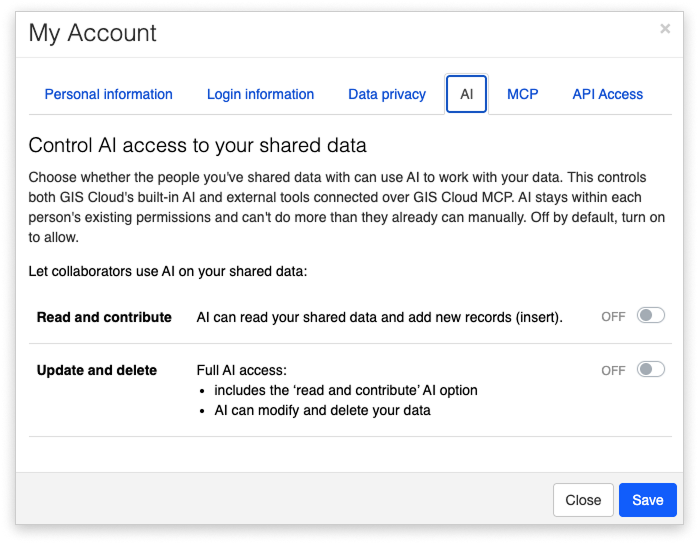
- You can choose whether the people you’ve shared data with (ie. maps, layers, datasources) can use AI to work with your data. This controls both GIS Cloud’s built-in AI and external tools connected over GIS Cloud MCP. By default, this setting is turned OFF to limit AI access for other users, but you can enable it through Account settings. There are two separate toggles, both off by default: –
- Read and contribute — AI can read the shared data and insert new records.
- Update and delete — full access: includes read/contribute, plus AI can modify and delete the data.
- Your data is sent to the AI provider only for the duration of the request and is not used for model training.
- The AI cannot execute arbitrary SQL. Reads and writes go through validated, structured queries scoped to your own data, and writes are proposed for your confirmation before they run.
Honest limits
- It proposes, and you confirm. Created or changed values are suggestions you review before saving.
- It cannot pull public data on its own, but it can work with public data used for the model – all other data must be uploaded to the File Manager first.
- It cannot generate reports by itself — use MCP for that.
- It works within one app’s scope at a time. For example, it cannot create an MDCP project from inside the Editor; it will tell you to switch apps and ask again.
- Destructive actions such as editing, bulk editing, and re-classifying have no undo — it warns you first.