
AI Form fill
Typing field after field on a mobile device can be slow and error-prone. AI Form Fill lets you fill a form simply by taking a photo or describing what you see out loud. The AI suggests values for the fields, tells you how confident it is in each, and you can review, edit, or revert before saving. Nothing is ever saved automatically.
Where it works
AI Form Fill is available in two places:
- The Mobile Data Collection (MDC) app — fill a feature’s form from a photo or voice while you are out in the field.
- The Map Editor (web) — fill forms while editing on the desktop, including bulk updates across many features at once.
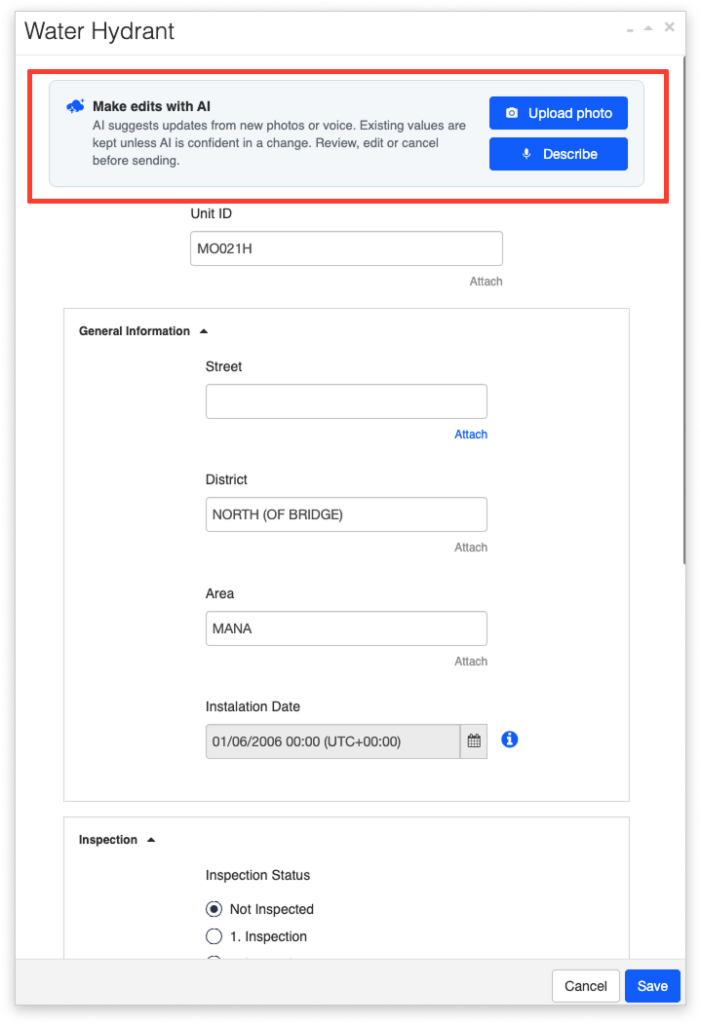
Filling a form from a photo
In the MDC app, the form for creating a feature includes a Make edits with AI section with two buttons: Take a photo and Describe. To fill a form from a photo:
- Open the form for the feature you want to collect.
- In the Autofill with AI section, tap Take a photo.
- Take a photo of the object you are recording.
- The AI analyses the photo and fills in the form fields it can, each with a confidence indicator (see below).
- Review the suggested values, correct anything that needs it, and send the record as usual.
If your form has a photo field, the photo you took for the AI is automatically attached to that field — the AI picks the most suitable one — so you don’t have to photograph the same object twice.
Filling a form from voice
To fill a form by speaking:
- In the Autofill with AI section, tap Describe.
- Speak a short description of what you see, for example: “I see a broken manhole cover and a crack at the entrance, no leakage.” You can name the exact fields you want filled.
- Tap Stop recording when you are done.
- The AI transcribes your description and fills in the matching fields, each with a confidence indicator.
The AI Confidence indicator
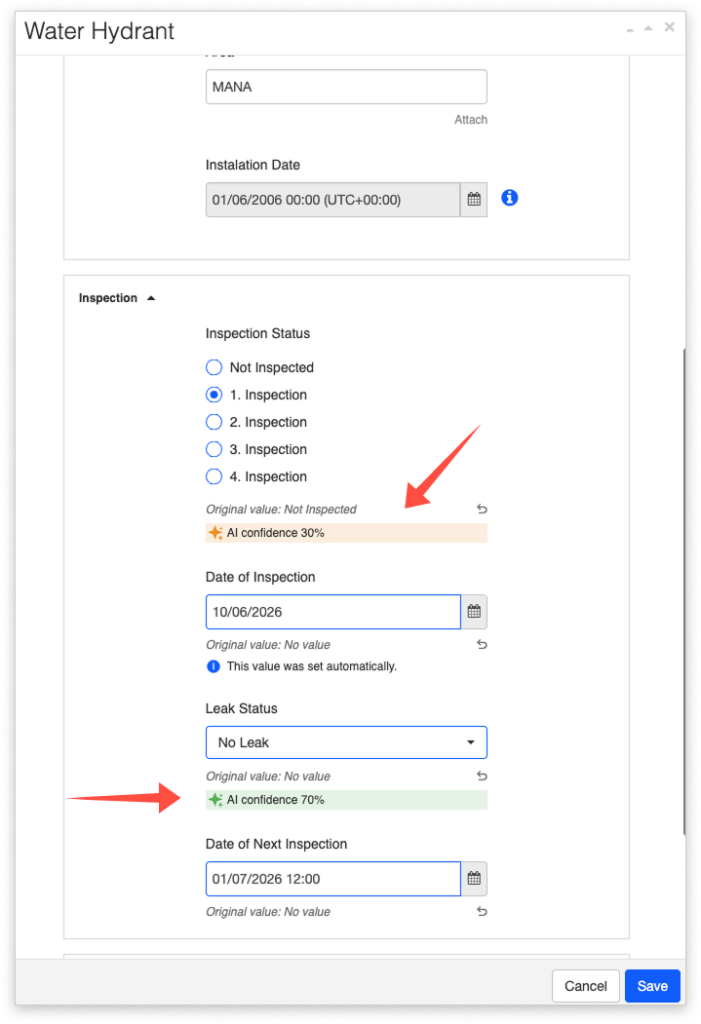
Every field the AI fills shows a small AI Confidence XX% label beneath it, colored according to how sure the AI is about that value:
- Green — high confidence
- Yellow — medium confidence
- Grey — low confidence
This lets you see at a glance which values to trust and which to double-check before sending.
As soon as you manually change an AI-filled value, the AI Confidence label disappears from that field. This keeps it clear which values came from the AI and which you have confirmed or entered yourself.
Improving the form with more input
AI Form Fill works incrementally. Each new photo or voice recording is a fresh pass: the AI takes the form’s current values together with the new capture and improves the form each time.
- Each additional photo or voice clip can raise the confidence and refine the values — the more you add, the more accurate the form becomes.
- Empty fields are filled once the AI is confident enough.
- The values the AI filled earlier are updated only when a new capture is clearly more confident.
- Values you typed are weighted heavily, but not frozen — the AI may still suggest a correction if it is confident the entered value is wrong. Any such change is a suggestion you can accept or revert.
You can add several photos or recordings in one session. Each is listed separately, so you can choose which ones to keep.
Editing existing records with AI
When you open an existing, saved record for editing, AI Form Fill works in Edit mode: take a new photo or record new voice, and the AI suggests updates. Existing values are kept unless the AI is confident in a change, and as always, you review, edit, or cancel before sending.
This is built on the same review-and-revert model as Multi-Edit, so each suggested change can be traced and undone before you save.
Reviewing before you save
AI Form Fill never saves on its own. Whatever the AI suggests, you stay in control:
- Keep a suggested value, or type over it to correct it.
- Revert a change you don’t want.
- Cancel the whole thing if a capture wasn’t useful.
If a photo or voice clip doesn’t produce anything usable, the assistant tells you so and lets you try again. System errors are handled gracefully — you won’t see raw error dialogues.
Limits
- Photo and voice only. Video is not supported as an input.
- Needs a connection. AI Form Fill requires a network connection and the AI service; it does not run offline.
- The AI proposes values — you always review and confirm before the record is saved.