
AI App Builder for building a custom app from a description
Not every team has a developer on hand to build a web app every time they need one. The AI App Builder closes that gap: you describe the app you want in plain language, and the assistant generates it for you. There is no code to write and no layout to wire up by hand — you type what you need, the app appears, and you keep shaping it through conversation until it does exactly what you want.
Check out the quick video, or scroll below for a full tutorial!
The AI App Builder is one of the four features under the GIS Cloud AI umbrella. It runs as a standalone app that you open from the Manager.
What can you build?
You can generate a wide range of custom apps from a single prompt, for example:
- Analytics dashboards — with charts and tables that summarise your data.
- City portals — with maps and filters for the public or for a department.
- Fieldwork reporting apps — focused tools for recording and reviewing field activity.
- Quality monitoring apps — dashboards that track status and flag issues.
- A duplicate of an existing app — start from something you already have and adapt it.
Whatever you build, the assistant knows the GIS Cloud API and wires the app to your maps, layers, forms, and data sources, so the result works with your real data from the start.
Where do you find it?
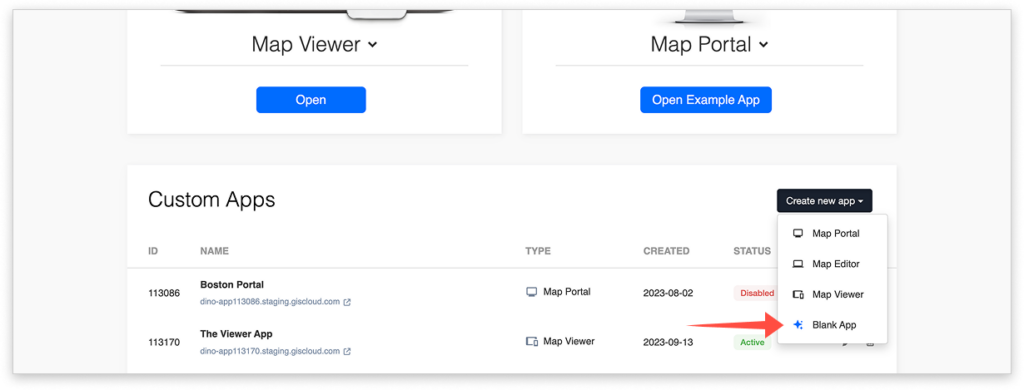
The AI App Builder opens from the Manager, from a Blank App. You create a Blank App, open it, and use the chat panel beside it to describe and refine your app. The chat behaves like Ask AI everywhere else in GIS Cloud, but here it is focused on building and editing the custom app you are working on.
Creating a custom app
To build your first app, follow the steps below:
- In Manager, create a new Blank App and open it. The chat panel appears next to the app.
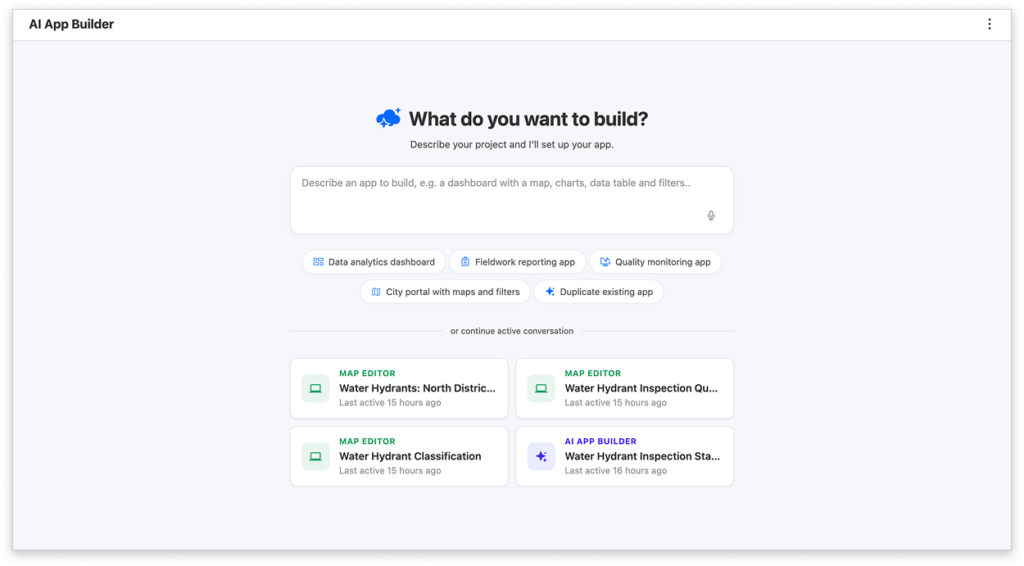
- Describe the app you want. If you are not sure where to start, click one of the AI Suggestions on the welcome screen to send a ready-made prompt:
- Build a data analytics dashboard
- Build a fieldwork reporting app
- Build a quality monitoring app
- Build a city portal with maps and filters
- Or type your own description, for example: “Make a dashboard that shows the number of trees by species as a bar chart, with a map of the trees below it.”
- The assistant generates the app, and it appears live in the panel beside the chat — the page builds and refreshes itself, with no manual reload.
Refining your app
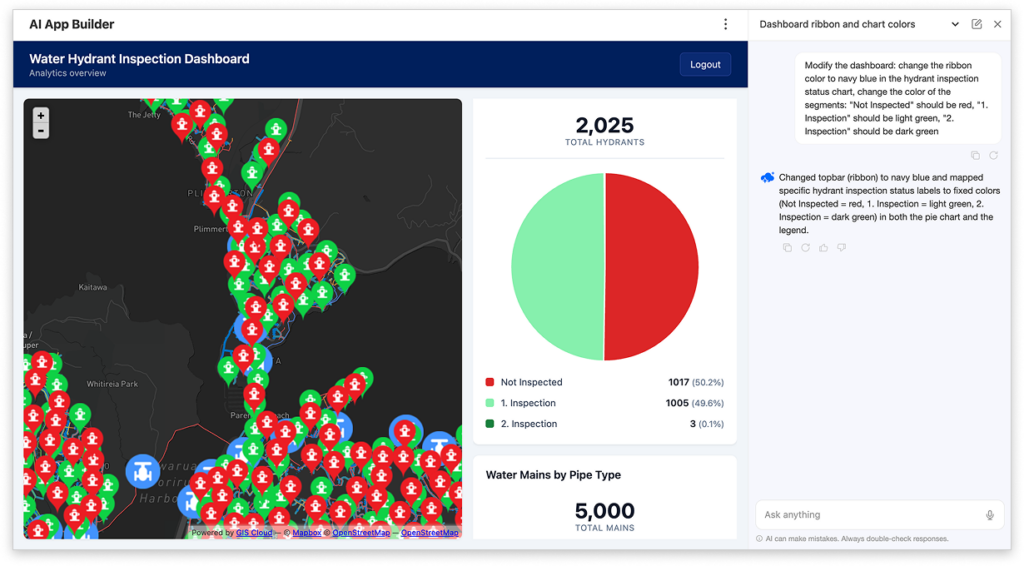
Building an app is a conversation, not a one-shot request. Once the first version is on screen, keep iterating — each request updates the running app in place. For example:
- “Add a status filter at the top.”
- “Make the chart blue and the header dark navy.”
- “Show the total count above the chart.”
The assistant remembers the context of your conversation, so you can refer back to what you just built and ask for adjustments naturally. Keep going until the app looks and behaves the way you want.
Publishing
There is no separate “publish” step. Once an app is generated, it is already published — installing a Blank App in Manager makes it live. As soon as the assistant builds your app, it is available to anyone you have given access to.
Note that if someone with permission opens an app that has been created but not yet built, they see a dedicated “app not ready yet” empty state, rather than a broken or blank page. Once you describe the app and it is generated, that placeholder is replaced by the live app.
Continuing a conversation
The AI App Builder starts a new conversation by default. If you already have an active conversation elsewhere, it offers you a choice: continue that conversation — shown with its name and last-modified information so you can recognise it — or start a new one.
If you return to a built app within 24 hours, it reopens your last App Builder conversation, so you can pick up where you left off. After 24 hours, it starts fresh.
Good to know
- The app is owned by whoever created it — only they can edit it through chat.
- Because the app is wired to your live GIS Cloud data, changes to your maps, layers, and forms are reflected in the app.
- GIS Cloud AI does not generate reports on its own. Reports become possible when an external AI client — such as Claude — connects to your account over MCP and reads your data. (See: GIS Cloud MCP.)
Now that you have built your first custom app, you can keep refining it through conversation at any time — just reopen it from Manager and tell the assistant what you would like to change.
If you are more visual learner, check out the video tutorial below to see how to create your first dashboard in just a few minutes.
Example prompts to help you get started
- Build a dashboard for the Trees layer on my Urban Greenery map. Show a bar chart of feature count by [species], a pie chart by [condition], and a table of the 20 most recently added features.
- Make a dashboard that compares inspection results across districts on the Hydrant Inspection map. Use a stacked bar chart per district and a map that colors each district by its share of failed inspections.
- Build a road works portal for citizens. Show the Road Works layer on a map, colored by status (planned, in progress, finished), with filters for [district] and start date. Clicking a feature should show the description, dates, and contractor
Tips for writing a good prompt
- Name your data. Mention the exact map, layer, and field names so the assistant connects the app to the right source. When referring to a map, it’s bet to use the direct URL of the map
- Describe the layout. Say what goes where, for example “map on the left, table on the right” or “summary cards at the top.”
- Say who it is for. A public portal, a supervisor’s review tool, and a management dashboard need different levels of detail.
- Start small, then iterate. Get a simple first version on screen and add filters, colors, and extra charts through follow-up messages.