
AI Connectors (MCP)
If you already work with an AI assistant such as Claude or ChatGPT, the GIS Cloud MCP server lets you connect it directly to your GIS Cloud account. From inside your assistant, you can ask it to read, query, and change your GIS Cloud data in plain language — including things the in-app assistant doesn’t do on its own, such as building reports. This article explains what MCP is, how to connect it, and what your assistant can do once it is connected.
What is MCP?
MCP stands for Model Context Protocol — an open standard that lets external AI assistants connect to other tools and data. The GIS Cloud MCP server uses it to expose GIS Cloud’s functionality to any MCP-compatible client. You keep working in the AI assistant you already use — Claude.ai, ChatGPT, and an IDE coding agent — and that assistant gains a set of GIS Cloud “tools” it can use on your behalf.
GIS Cloud MCP is a separate way to use AI from the in-app Ask AI chat. Ask AI is a panel inside GIS Cloud; MCP brings GIS Cloud into the AI assistant of your choice.
Who is it for?
- Users who already work day to day with an AI assistant like Claude or ChatGPT and want their GIS Cloud data available there.
- Power users and developers who want to drive GIS Cloud through an AI assistant instead of the REST API.
- IDE and agent users who want a coding agent to work with GIS Cloud resources as part of a larger workflow.
How to connect from GIS Cloud?
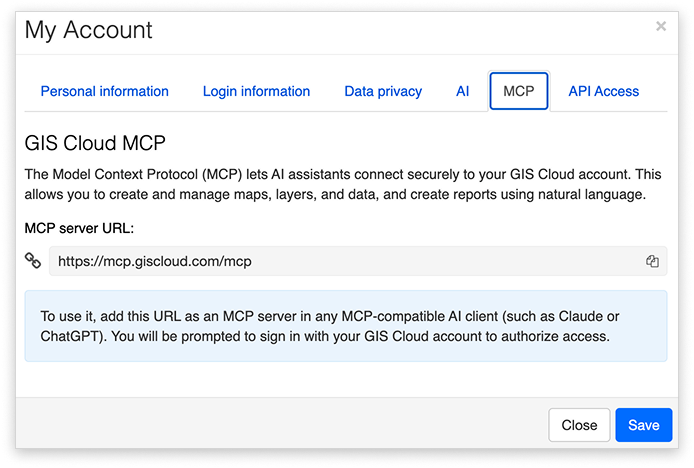
- In GIS Cloud, open My Account → GIS Cloud MCP. You will see your personal MCP server URL with a Copy button.
- In your AI assistant (Claude, ChatGPT, and so on), add that URL as an MCP server or connector.
- You are prompted to sign in to your GIS Cloud account. You can use your password, Google or Apple single sign-on. Your assistant never sees your password.
- On the consent screen, authorise access and choose what the assistant may do — read-only, or read and write — and which resources it may use.
How to connect from your AI Client?
Claude
- Log into Claude using your credentials
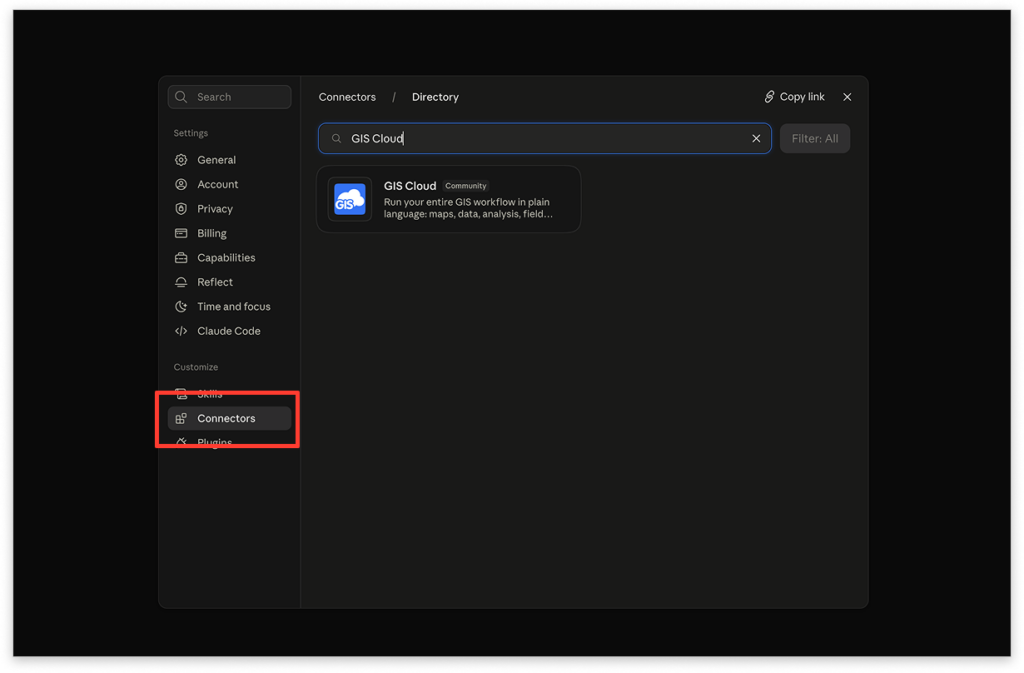
- Click on “Customize” in the panel on the left-hand side of the screen
- Go to the Connectors section and search for GIS Cloud
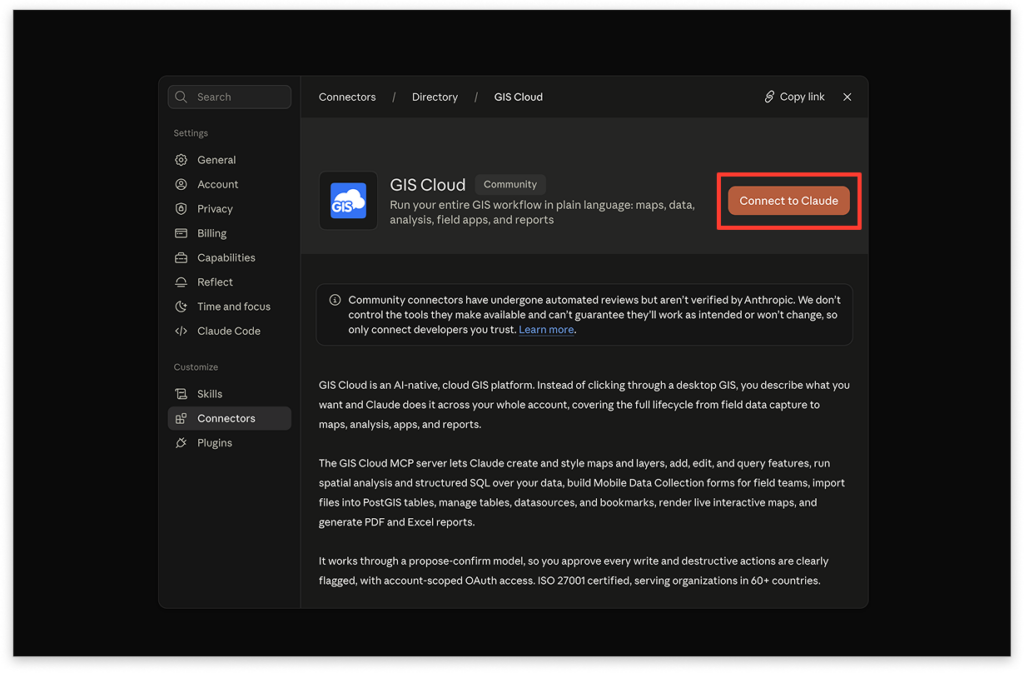
- Select the GIS Cloud Connector and click on “Connect to Claude”
- Once prompted, sign in to GIS Cloud with your GIS Cloud credentials and click on “Continue”
- Authorise MCP tools with “Read and write” or “Read only” permissions
- Once you are done setting the permissions, click on “Authorize” to complete the setup
ChatGPT
- Log into ChatGPT using your credentials
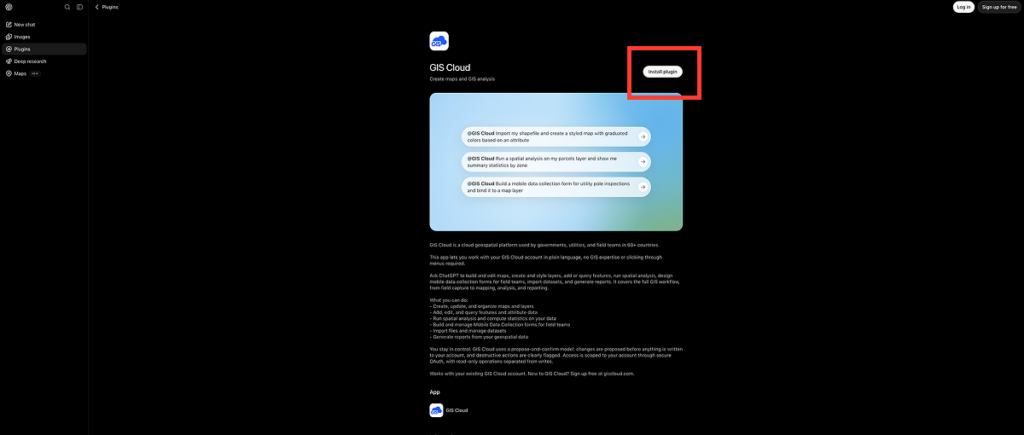
- Click on “Plugins” in the panel on the left-hand side of the screen
- Search for GIS Cloud and select the GIS Cloud Plugin. After selecting the plugin, click on Install plugin
- Once prompted, sign in to GIS Cloud using your GIS Cloud credentials and click on “Continue”
- Authorise MCP tools with “Read and write” or “Read only” permissions
- Once you are done setting the permissions, click on “Authorize” to complete the setup
What your assistant can do over MCP
Once connected and authorised, your assistant can call GIS Cloud tools whenever you ask for something. The tools cover:
- Maps — list, get, create, update, and delete maps, and render a thumbnail of a map so the assistant can “see” it.
- Layers — list layers on a map, get details and columns, create, update, and delete layers, and bind a form to a layer.
- Features — create, read, update (one or many at once), and delete the data on the map; bulk-update and select features.
- Tables — list, create, get details, delete, and truncate tables, and read and write rows.
- Forms — list, create, update, and bind forms to layers.
- Data and queries — run read, write, and confirmed (guarded) queries; get attribute statistics on a column; import a CSV or XLS into a new table.
- Files — list, read, upload, and delete files; create directories; and unzip archives.
- Bookmarks — list, create, update, and delete saved map views.
- Render, basemaps, and data sources — render a map and read basemaps and data sources.
- Account — get the current user.
Safety
GIS Cloud MCP is built so that an AI assistant cannot do anything you couldn’t do yourself, and cannot make irreversible changes without your say-so.
- Everything runs as you, through secure sign-in. Access is granted with OAuth, and the assistant inherits exactly your permissions.
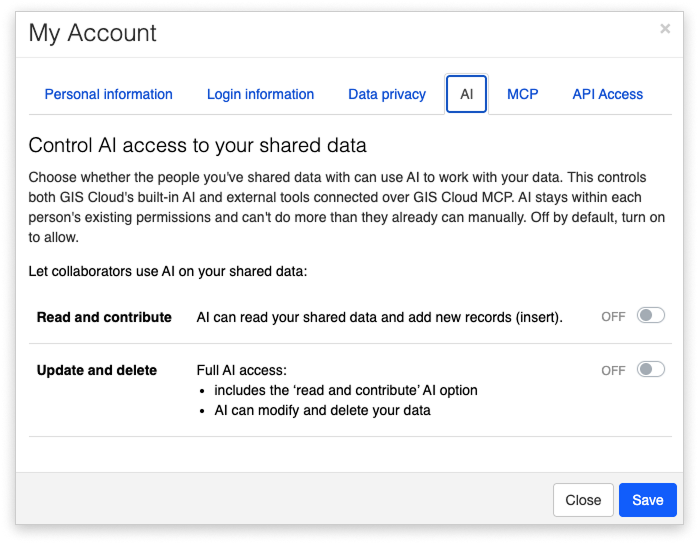
- Read is the baseline; writing and deleting are gated. During authorisation, you decide whether the assistant may only read your data or also change it.
- Destructive actions need a two-step confirmation. When the assistant tries something destructive — for example, deleting a layer or updating many features — the first call returns a plain-language summary of what is about to happen, such as “About to delete layer ‘Sales Territories’ (1,234 features).” Nothing changes until you approve it. A confirmation can be used only once, so the same destructive action cannot be silently repeated.
How MCP differs from Ask AI?
- The interface is your AI assistant (Claude, ChatGPT, and so on), not a panel inside GIS Cloud.
- It works across your whole account, not just one open map. You can say “list all my maps”, and the assistant can find them.
- Conversations are not shared with the in-app Ask AI chat. The two are independent, both backed by the GIS Cloud REST API.