
Ask AI — the in-app assistant
Ask AI is the conversational assistant built into GIS Cloud. You open a chat panel on the right side of the screen, ask questions in plain English (or your own language), and the assistant answers, runs the work on the map for you, or builds things on your behalf — no SQL, no code, no clicking through several dialogues.
Table of Contents
Think of it as a “talk to your map” feature: you type what you want, and the assistant does it.
Where do you find it?
Ask AI is available across the GIS Cloud product family — Map Editor, Map Viewer, Contributor, the Mobile Data Collection Portal (MDCP), Manager, and the AI App Builder. The assistant behaves the same way everywhere, but what it focuses on adapts to the app you are in:
- Map Editor / Map Viewer / Contributor — works with the data on the current map: analyses layers, selects features, and (with edit rights) classifies features, adds features to a layer, and creates forms.
- MDC Portal — the chat is the main surface for creating and editing Data Collection projects and forms.
- Manager — ask the same questions you can ask elsewhere (analyse your maps and layers, find a map by name, see what is new in your projects), and open the AI App Builder from the Custom Apps table.
- AI App Builder — describe a custom app and the assistant builds it, then refines it through conversation.
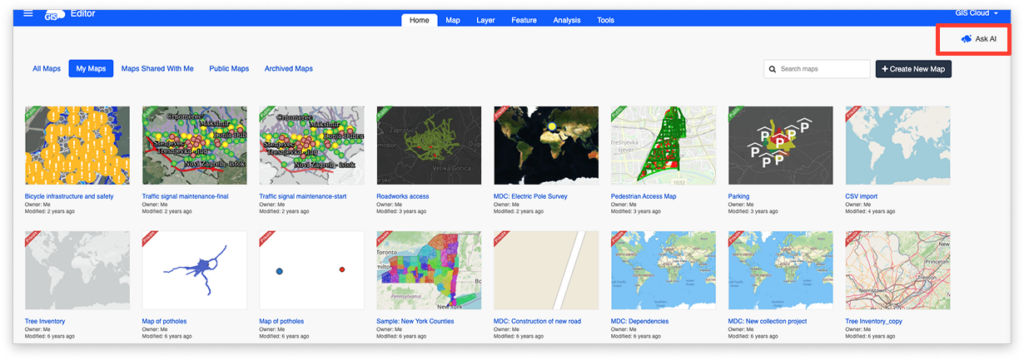
Opening the panel
- Click the Ask AI button in the toolbar.
- The panel slides out from the right side of the screen.
- To resize it, drag its left edge.
When you open the panel for the first time, or start a new conversation, you see a welcome screen with a short intro and a few suggestion chips — clickable example questions like “Analyse data in selected layer?” or “Select features by specific criteria.” Click a chip to send that question instantly, so you don’t have to type anything to get started.
Asking a question
- Type your question in the text input at the bottom of the panel.
- Press Enter to send; press Shift + Enter to add a new line.
- Use the Up / Down arrows in the input to cycle through your previously sent messages, so you can quickly re-send or tweak an earlier prompt.
While the assistant is working, a shimmer animation plays where the answer will appear, and the Send button becomes a Stop button. Click Stop, or press ESC, to cancel the request.
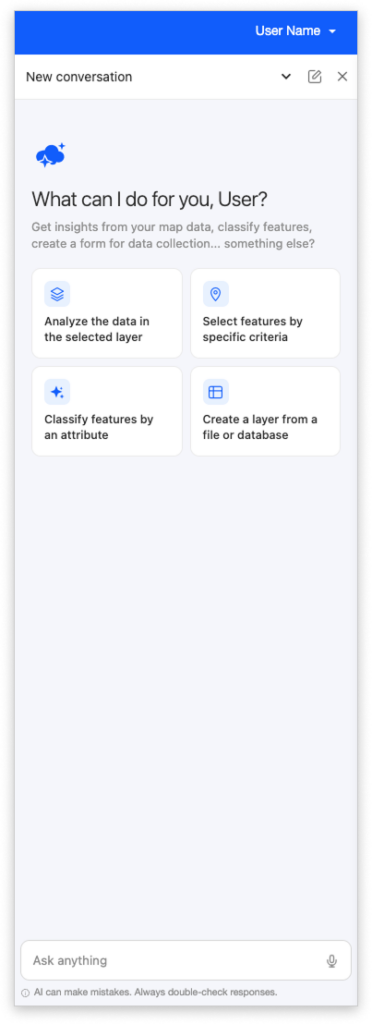
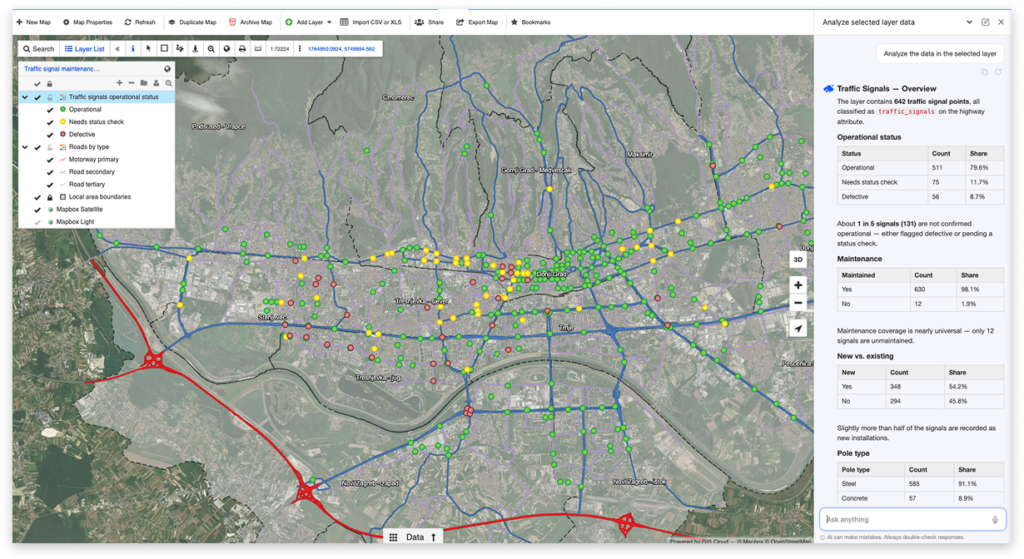
Reading the answer
Answers support full formatting — headings, bold and italic text, tables, and lists — and long answers scroll naturally. Below every assistant message, a small toolbar lets you:
- Copy the message to the clipboard.
- Give a thumbs up or thumbs down to tell the GIS Cloud team whether the answer was helpful. This feedback is read by us and is the fastest way to influence improvements, so use it freely.
- Retry the same question, which is useful when an answer was not quite right.
You can export the whole conversation as a PDF through your browser’s print dialogue.
What you can ask Ask AI to do
You never have to choose a “mode” — the assistant reads your question and figures out what you want. If it gets it wrong, just clarify, and it adjusts.
Ask questions about your data
Ask anything about the data on a layer and get an answer in plain language. The assistant understands:
- Numerical columns — count, sum, average, minimum, maximum.
- Text and categorical columns — group, filter, and list.
- Spatial relationships — distance, area, perimeter, intersection, containment, buffers, and nearest neighbour.
- Joins between layers.
- Units — it knows the layer’s SRID and converts correctly between square metres, square kilometres, hectares, and so on.
Note that for grouped or aggregate answers (such as counts by category), there is no Select on map, because there are no individual features to highlight. For very large result sets, the response is capped, and the assistant will suggest narrowing your question.
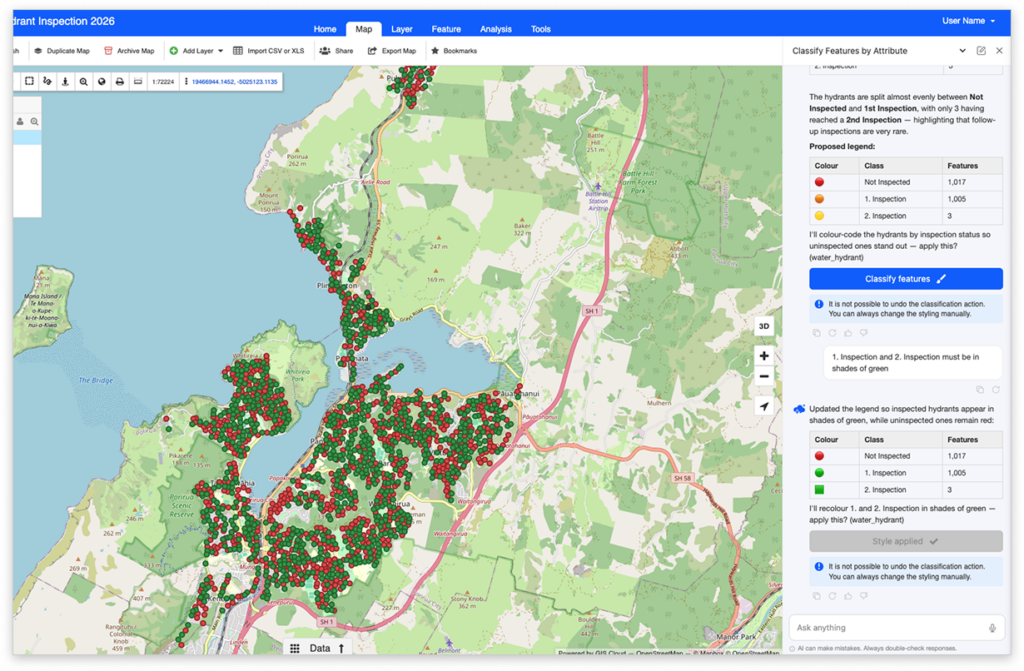
Layer classification
Ask for a layer to be classified by an attribute and the assistant picks suitable colours and applies them to the map automatically. For example: “Colour the parcels by zoning” or “Classify roads by type.”
- Works best on categorical columns with 2–15 distinct values. If there are more, the assistant explains and suggests a narrower categorisation.
- It chooses sensible colours and labels for each category, and the legend updates automatically.
- Works on point, line, and polygon layers.
The change is applied through a Classify layer button, so nothing is restyled until you confirm. Remember that classifying replaces the current styling and cannot be undone.
Create and edit forms and projects
Describe a form in plain language, and the assistant builds it. You can:
- Create a form bound to an existing layer, or a standalone form, using standard GIS Cloud field types (text, number, date, dropdown, checkbox, multiline text, and more).
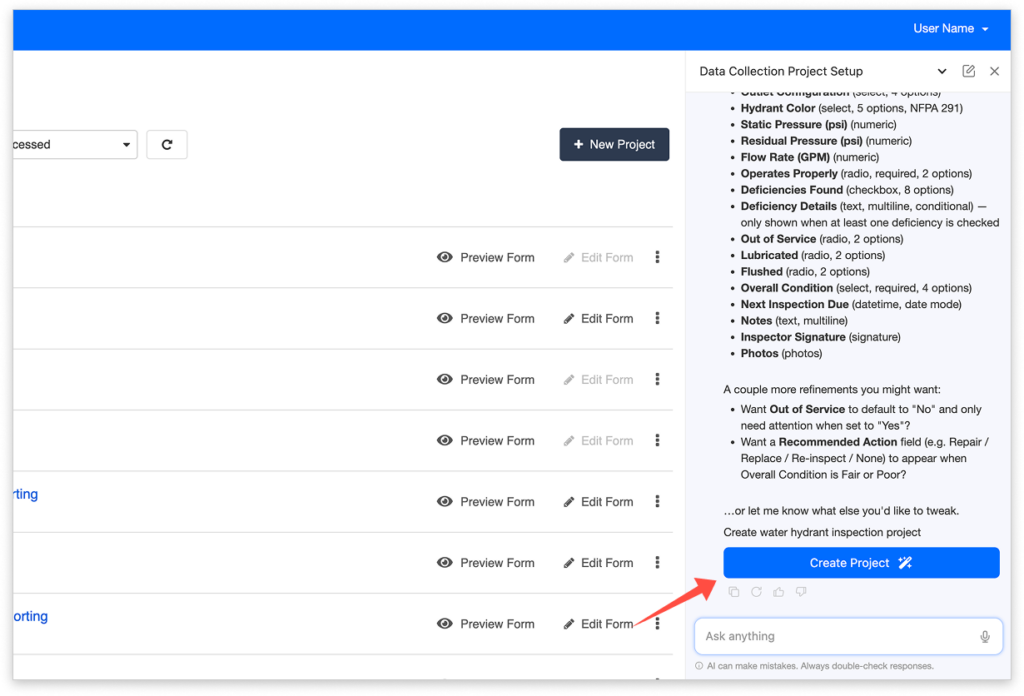
- Create a complete Data Collection project — a map, a table, a layer, and a connected form — from a single description. This full-project flow is available in the MDC Portal. In the regular Editor, you can still create the individual pieces.
- Edit an existing form: add, remove, rename, reorder, or retype a field, or change properties such as required, default value, visibility, and translations.
- Add or preserve multilingual labels on the fly.
After the assistant creates or edits something, it offers an action button to open the form designer (or the project) so you can review and fine-tune the result.
Get general help
If you open the chat without a map, or ask a general question — “What is GIS Cloud?”, “How do I import a CSV?” — the assistant still helps, answering questions about GIS Cloud and pointing you to the right features and steps.
Example prompts to help you get inspired
- How many inspection points were marked as ‘Needs repair’ last month?
- What is the total area of all parcels zoned as agricultural, in hectares?
- Classify the water pipes layer by material
- Create a data collection project for sidewalk inspections with a point layer and a form that has: inspector name, date, condition (Good / Fair / Poor), a photo, and a comments field.
- In the Street Lights form, make the ‘Status’ field required, add a new dropdown ‘Lamp type’ with LED, Sodium, and Halogen, and add Croatian translations for all labels
- Create a new map called “Hydrant inspection”, add the hydrants_main table as a layer and add a basemap
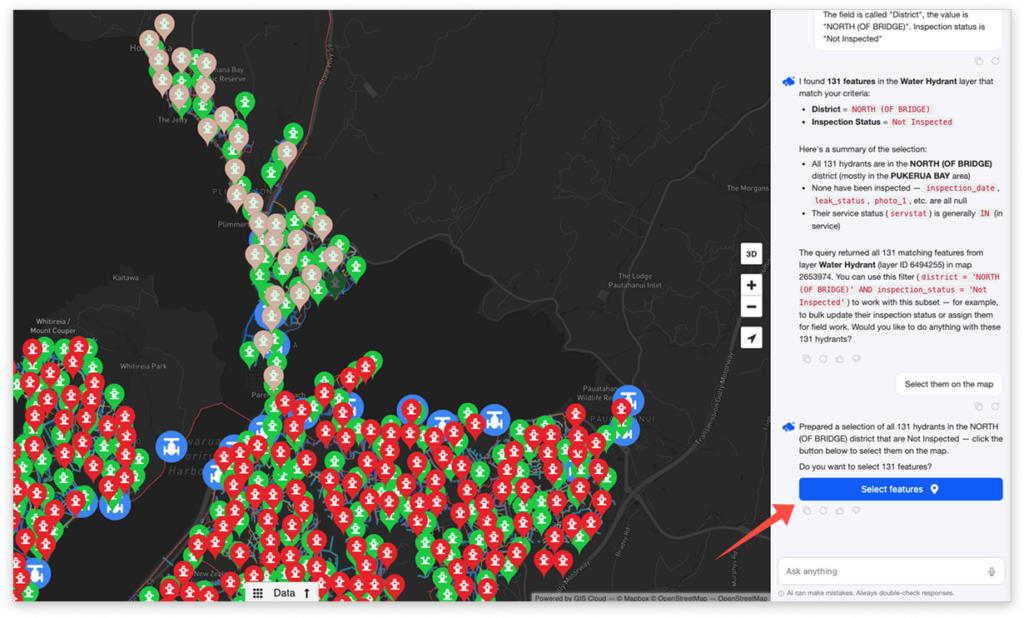
- Give me a count of all not inspected street lights in the Downtown district and select them on the map.
Nothing changes silently — confirm changes with action buttons
When the assistant proposes a concrete change to your data or map, it does not apply it on its own. Instead, it shows a clearly labelled action button under the answer — for example, Select on map, Classify layer, Create form, Update form. You click the button to apply the change, see a spinner while it runs, and a green checkmark when it is done. Until you click, nothing changes on the map or in the database, so always read the proposal first.
Conversations across apps
- Conversations are remembered and continue as you move between apps and maps. The assistant keeps track of every map a conversation has touched.
- The assistant remembers context within one conversation, so you can say things like “now do the same for the second layer.” For a new topic, start a new conversation.
- A conversation that has been idle for 24 hours becomes inactive — typing into it reactivates it.
- Logging out closes the chat; your next login starts a fresh conversation.
Privacy, safety, and limits
Privacy and safety
- Each conversation is private to you. Other users, even in your organisation, cannot read or list your threads.
- Your data is sent to the AI provider only for the duration of the request and is not used for model training.
- The AI cannot execute arbitrary SQL. Reads and writes go through validated, structured queries scoped to your own data, and writes are proposed for your confirmation before they run.
- You can choose whether the people you’ve shared data with (ie. maps, layers, datasources) can use AI to work with your data. This controls both GIS Cloud’s built-in AI and external tools connected over GIS Cloud MCP. By default, this setting is turned OFF to limit AI access for other users, but you can enable it through Account settings.
Honest limits
- It proposes, and you confirm. Created or changed values are suggestions you review before saving.
- It cannot pull public data on its own except the public data used in the model – all other data needs to be uploaded to File Manager first.
- It cannot generate reports by itself — use MCP for that.
- It works within one app’s scope at a time. For example, it cannot create an MDCP project from inside the Editor; it will tell you to switch apps and ask again.
- Destructive actions such as editing, bulk editing, and re-classifying have no undo — it warns you first.